Leave Your Message
Choosing the right Pc Touch Panel is more than selecting a glossy screen for a modern workstation. It affects usability, durability, safety, and total ownership cost. IDC’s Worldwide Quarterly Personal Computing Device Tracker reported approximately 261.8 million PC shipments in 2024, showing the continuing scale of the computer hardware market. As touch interfaces enter offices, factories, medical environments, and retail counters, panel selection deserves practical evaluation.
This guide presents 10 Tips for Choosing the Right PC Touch Panel. It examines touch technology, screen size, resolution, brightness, viewing angles, surface treatment, response time, operating-system compatibility, mounting, and after-sales support. The Global Market Insights touchscreen market analysis identifies industrial automation, healthcare, and consumer electronics as important growth areas. These applications demand different specifications. A warehouse terminal may need gloved operation and resistance to dust. A design workstation may prioritize color accuracy and low parallax. A public kiosk needs stronger glass and easier cleaning.
Small details matter.
IEC 62368-1 can help buyers review equipment safety requirements, while IP ratings provide a clearer way to discuss dust and water resistance. However, compliance markings do not automatically prove long-term reliability. A certified panel can still perform poorly in direct sunlight or develop calibration drift after heavy use. That uncomfortable possibility is worth acknowledging. Test the actual panel with your software, cables, gloves, and mounting position before approving a purchase. Manufacturer datasheets, independent test results, warranty terms, and supplier experience should support the final decision. This approach turns broad market data into a more reliable, application-specific choice.
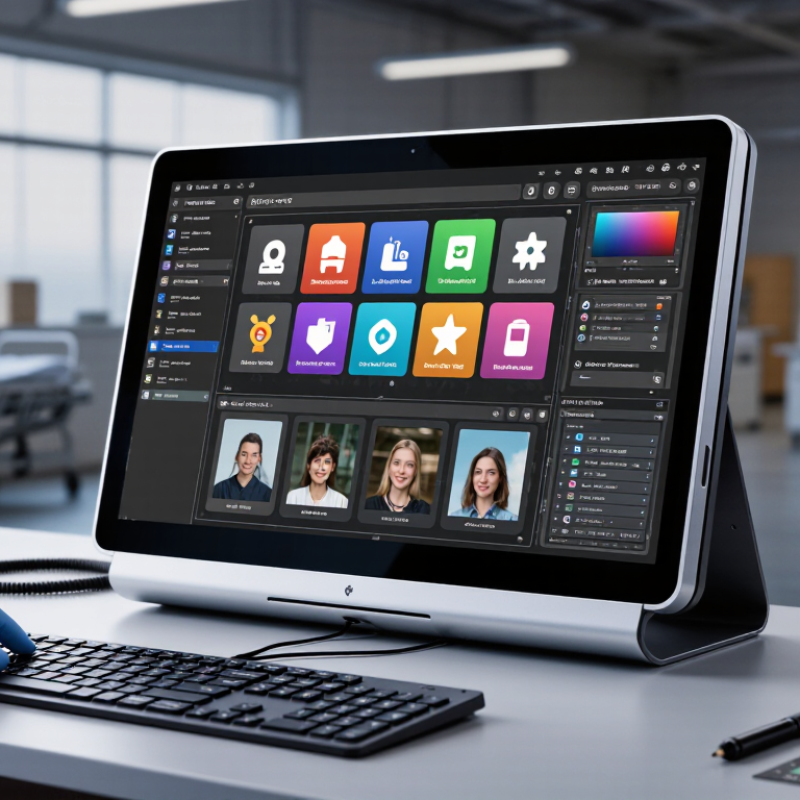
Before choosing a PC touch panel, define where it will work. A quiet office needs different protection than a dusty production floor. In field evaluations, I check temperature, humidity, vibration, dust, sunlight, and available space. These details often matter more than screen size.
Tip: Write the operating conditions down.
For a warehouse, workers may use gloves, so test touch sensitivity with the actual gloves. Wet fingers can also change performance. In a clinic, frequent cleaning requires a sealed surface and compatible cleaning procedures. Outdoor installations need strong brightness, glare control, and stable performance across temperature changes. Check the panel’s published ratings, but verify them through practical testing.
Tip: Test real users in real conditions.
Application goals should guide every specification. A control interface may need a few large buttons, while a design workstation may require high resolution and precise touch response. Consider mounting position, viewing angle, cable routing, and continuous operating hours. I once focused too heavily on resolution and overlooked glare from overhead lighting. That mistake was avoidable. A short trial installation can reveal problems that datasheets cannot show. It is not perfect, but it is reliable evidence. Revisit your assumptions before approving the final panel.
| No. | Selection Factor | Application and Environment Questions | Typical Conditions | Recommended Specification | Reason |
|---|---|---|---|---|---|
| 1 | Screen Size and Viewing Distance | Will users operate the panel from arm’s length, across a counter, or several meters away? | Operator workstation: 0.5–1 m; public kiosk: 0.5–2 m; control room: 1–3 m. | 15–19 inches for close operation; 21.5–24 inches for shared work areas; larger displays when viewing distance exceeds 1.5 m. | The display should show controls and text clearly without requiring excessive zooming or awkward movement. |
| 2 | Indoor or Outdoor Use | Will the panel be exposed to sunlight, rain, dust, condensation, or changing weather? | Office or factory interior; sheltered outdoor area; fully exposed outdoor installation. | Indoor models for controlled spaces; high-brightness displays of approximately 800–1,500 nits for outdoor readability; sealed enclosure for exposed locations. | Ambient light and moisture directly affect readability, reliability, and service life. |
| 3 | Touch Interaction Method | Will users wear gloves, use a stylus, or operate the panel with wet or contaminated hands? | Clean office use; industrial operation with gloves; food, medical, or outdoor environments. | Projected capacitive touch for multi-touch and glass surfaces; resistive touch where gloves, styluses, or liquid tolerance are priorities. | The touch technology must match the user’s input method and the level of surface contamination. |
| 4 | Brightness and Visibility | Is the panel located near windows, under strong lighting, or in direct sunlight? | Low-light interior: 250–400 nits; bright interior: 400–700 nits; outdoor use: generally 800 nits or higher. | Select adequate luminance together with an anti-glare or anti-reflective surface treatment. | Brightness alone cannot eliminate reflections; optical surface treatment also improves viewing comfort. |
| 5 | Temperature and Humidity | What are the lowest and highest operating temperatures, and can condensation occur? | Office: approximately 10–35°C; industrial cabinet: 0–45°C; outdoor or transport equipment: wider temperature swings. | Choose a rated operating range that covers the site conditions with a safety margin; specify humidity and condensation requirements separately. | Temperature extremes and moisture can cause slow response, display defects, corrosion, or premature component failure. |
| 6 | Dust, Water, and Cleaning | Will the panel be exposed to dust, oil, cleaning chemicals, or water jets? | Office cleaning; dusty production area; washdown zone; healthcare or food-processing area. | Use an enclosure with an appropriate IP rating; IP65 at the front is commonly considered for dust and low-pressure water exposure. | Ingress protection reduces contamination risk, but the complete installation must also protect cables, connectors, and rear components. |
| 7 | Mechanical Stress and Vibration | Will the panel be mounted on machinery, a vehicle, or a frequently used public terminal? | Stationary desk; vibrating machine enclosure; mobile equipment; high-traffic kiosk. | Select a rigid front panel, secure mounting hardware, strengthened glass where appropriate, and documented vibration or impact test results. | Mechanical shock and vibration can loosen connections, damage the display, or reduce touch accuracy. |
| 8 | Connectivity and Computer Compatibility | Which video, touch, power, and control interfaces are available on the host computer? | Embedded PC, industrial computer, laptop, panel computer, or remote display system. | Verify HDMI, DisplayPort, USB, serial, Ethernet, or other required interfaces, plus operating-system driver support. | A panel can have suitable hardware but still fail in practice if the video signal, touch protocol, or driver is incompatible. |
| 9 | Ergonomics and Installation | Will users stand or sit, and how will the panel be mounted or adjusted? | Desktop workstation; flush panel mount; wall mount; adjustable arm; public-facing kiosk. | Check viewing angle, VESA or panel-mount dimensions, cable access, tilt range, and accessibility requirements before ordering. | Correct positioning reduces glare, operator fatigue, accidental touches, and installation delays. |
| 10 | Reliability, Service, and Safety | How long must the panel operate each day, and how quickly must it be repaired or replaced? | Occasional office use; 8-hour shifts; 24/7 monitoring; critical production or public-service equipment. | Confirm continuous-use rating, warranty terms, replacement availability, power consumption, safety certifications, and planned maintenance procedures. | Lifecycle support and compliance are essential when downtime, worker safety, or public access is involved. |