What Is a PC Touch Panel and How Does It Work?
A PC Touch Panel turns a flat computer display into an interactive working surface. It detects a finger, stylus, or gloved hand, then converts physical contact into digital coordinates. The controller interprets those coordinates and sends them to the operating system. Simple in appearance. Technically, it is not simple.
Market data shows why this technology deserves closer attention. MarketsandMarkets estimated the global touch-screen controller market at about USD 8.9 billion in 2023. Its report projects growth to approximately USD 13.7 billion by 2028. Grand View Research also reported strong expansion across the broader touchscreen market, driven by laptops, industrial terminals, healthcare equipment, and retail systems. These figures describe a wide category, not PC touch panels alone. That limitation matters.
Bill Buxton, a prominent interaction-design researcher and former Microsoft principal researcher, stated, “There is no such thing as a best interface, only interfaces that are best for a particular use.” His point remains practical. A glossy panel may feel responsive in a bright office, yet perform poorly under sunlight or with wet fingers. A capacitive panel can support precise gestures, while a resistive design may better suit factory gloves. Choosing a PC Touch Panel therefore involves more than counting touches per second. Engineers must examine sensor structure, latency, optical clarity, durability, calibration, and the user’s working environment. Some specifications look impressive but reveal little during real use. The most reliable evaluation still includes hands-on testing, because published numbers cannot fully describe a finger sliding across glass, a stylus pausing at an edge, or a panel surviving thousands of daily touches.
What Is a PC Touch Panel?
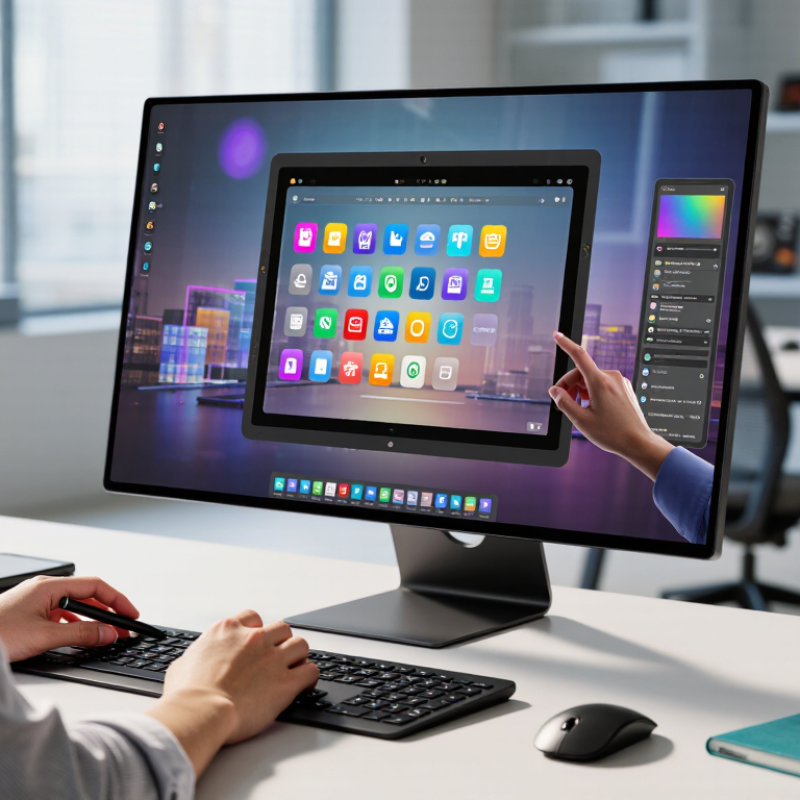
A PC touch panel is a display surface that accepts direct input from a finger or stylus. It combines a visual panel with a transparent touch-sensing layer and a controller. The controller translates electrical changes into screen coordinates. Those coordinates reach the computer through USB or another supported interface. In simple terms, the panel replaces a separate mouse for many everyday actions. Tap an icon. Drag a file. Type on an on-screen keyboard.
Most modern panels use projected capacitive sensing. A small electrical field changes when a conductive finger approaches the glass. The controller detects that change and reports its position. Resistive panels work differently. Two thin conductive layers meet when pressed, making them useful with gloves or a firm stylus. The choice affects brightness, durability, cleaning, and touch accuracy. A good installation also needs the correct driver, calibration, and compatible operating system. Without calibration, a tap near the corner may activate an adjacent button.
From practical testing, response depends on more than the panel itself. Moisture, thick gloves, electrical noise, and scratched surfaces can reduce accuracy. Finger input also varies between users. Not every missed tap means hardware failure. Sometimes interface buttons are simply too small. Clear feedback, sensible spacing, and regular cleaning improve daily use. Still, touch technology is not flawless. A panel may feel responsive in a showroom yet behave differently under bright light, vibration, or continuous industrial use.
How Does a PC Touch Panel Detect Touch?
A PC touch panel is a display surface with a touch-sensing layer. It lets users tap, drag, or write directly on the screen. Most modern panels use projected capacitive technology. According to Grand View Research’s 2024 industry report, the global touchscreen market was valued at more than 80 billion U.S. dollars in 2023. That scale reflects widespread use in computers, industrial terminals, and control equipment.
How does a PC touch panel detect touch? Transparent electrodes create a weak electrical field across the glass. Your finger conducts electricity and changes the local capacitance. A touch controller measures this change across several electrode points. It then calculates the X and Y coordinates. The operating system receives that position as a click, gesture, or handwriting input. Multi-touch works because the controller tracks several changing points at once. Resistive panels work differently. Two flexible conductive layers contact each other under pressure. They can respond to gloves or a stylus, but usually feel less fluid.
Tips: Keep the screen clean and dry. Moisture can create false touches. Do not assume every panel supports gloves. Check its sensing technology first. A practical test should include light taps, edge touches, and slow dragging. Edge accuracy may be weaker. This is an often-overlooked limitation. Temperature, electrical noise, thick protective glass, and calibration errors can also reduce accuracy. MarketsandMarkets has identified industrial and interactive display applications as important growth areas, yet real-world performance still depends on installation quality.
What Are the Main Types of PC Touch Panels?
PC touch panels mainly use projected capacitive, resistive, infrared, or surface acoustic wave technology. Projected capacitive panels detect changes in an electrical field. They support light finger gestures, multi-touch, and smooth glass surfaces. This makes them suitable for office computers, control desks, and public information terminals. However, thick gloves or heavy moisture can reduce accuracy.
Resistive panels respond when two conductive layers physically meet. They work with fingers, gloves, or a stylus, even in dusty workplaces. Their surface may feel less responsive, and multi-touch support is limited. Infrared panels create an invisible grid across the screen. A finger interrupts the light beams, triggering a command. They offer large display sizes and clear images, but dust around the frame can cause false touches. Surface acoustic wave panels use sound waves traveling across glass. They deliver strong image clarity, though water and surface contamination may interfere.
Market data shows why these choices matter. Grand View Research estimated the global touchscreen market at approximately USD 81.5 billion in 2023, with continued growth through 2030. Mordor Intelligence also reported strong demand for interactive displays in commercial and industrial settings. These reports cover more than PC panels, so applying their figures directly can mislead. A careful buyer should test glove use, cleaning routines, viewing angle, and touch latency before selecting a panel. The cheapest option is not always the most reliable.
Where Are PC Touch Panels Commonly Used?
A PC touch panel combines a display with a touch-sensitive surface, allowing users to control software directly with a finger or stylus. Most panels detect changes in electrical signals when a person touches the screen. The computer then converts that contact into a command, such as selecting an icon, entering data, or moving an image. It feels immediate.
PC touch panels are common in factory control rooms, where operators monitor temperature, pressure, and production speed. They also appear in medical reception areas, laboratory equipment, classroom workstations, and public information kiosks. In a warehouse, a worker may tap a screen while wearing thin gloves and scanning a package. In a clinic, staff can move through patient records without reaching for a separate mouse.
Retail counters and transport stations use these panels because they save space and reduce physical controls. Their sealed surfaces can also simplify cleaning, especially in busy indoor environments. However, touch input is not perfect. Dust, moisture, thick gloves, and poor screen calibration can cause missed commands. Small buttons may frustrate users who work quickly. Designers should test panels with real users, not only clean fingers in a quiet office. A bright display may also create glare near windows, which is easy to overlook during installation.
What Is a PC Touch Panel and How Does It Work?
PC touch panels detect contact on a display and convert it into cursor movement, taps, gestures, or handwriting. The chart compares common panel technologies by the input types they typically support.
Typical capability: 1 = supported, 0 = generally not supported. Actual performance depends on panel design, controller settings, and software.