Choosing a Pc Touch Panel is not just a matter of comparing screen sizes or prices. The right choice depends on where the panel will operate and what employees need to do with it. A unit beside a production line faces dust, vibration, and frequent cleaning. A panel at a reception desk may need a bright display, a slim profile, and reliable multi-touch response. These differences affect daily usability, maintenance, and the system’s working life.
Start by listing practical requirements: screen size, mounting position, operating temperature, brightness, touch method, and expected hours of use. Check whether staff wear gloves, interact with the display at an angle, or need to use it in direct sunlight. Then confirm that its processor, ports, operating system, and network options work with existing equipment. Ask suppliers for clear specifications, warranty terms, and support details. If possible, test the panel with the actual application before ordering several units. Small interface delays can frustrate operators over a full shift. A specification sheet can still mislead. A high brightness rating, for example, does not guarantee comfortable viewing in every setting. There may be trade-offs between cost, durability, and customization, and no single model suits every business. Careful selection means checking claims against the real workspace, not just choosing the most impressive feature list.

Start with the task, not the screen size. Will staff enter orders at a counter, check machine readings, or guide visitors through a kiosk? Each job places different demands on a PC touch panel. On a production floor, operators may wear gloves and need large, well-spaced controls. At a reception desk, a clear display and simple navigation may matter more. That matters.
Deloitte’s 2023 Smart Manufacturing Survey found that 86% of surveyed manufacturers viewed smart manufacturing solutions as future drivers of competitiveness. The figure signals growing interest, not a reason to overbuy.
Map the actual workflow: who touches the panel, how often, from what angle, and in what conditions? Note nearby water, dust, bright windows, cleaning routines, and available mounting space. A neat specification sheet can still mislead. I would test a sample with the real interface, gloves, and lighting before settling on touch technology, screen brightness, or enclosure protection.
Also check required ports and operating-system compatibility; overlooking either can complicate deployment. Include maintenance staff in the decision, since access for repairs affects downtime. One assumption may prove wrong. That is useful information before purchase.
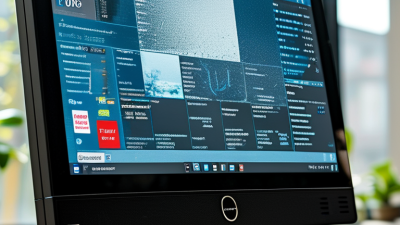
How to Choose the Right PC Touch Panel for Your Business?
Compare Touchscreen Technologies and Interaction Methods
Resistive panels register pressure, so operators can use them with gloves or a basic stylus. Projected capacitive screens support crisp, multi-touch gestures, but some models respond poorly to thick gloves. Infrared panels detect interruptions across a frame and can suit large displays or gloved hands. Each has trade-offs. Dust, moisture, lighting, and cleaning routines can affect real-world performance, so compare specifications against the actual work area.
Interaction matters as much as the sensor. A warehouse worker may need large on-screen buttons and glove-friendly input; a clinic workstation may benefit from precise stylus control. For shared kiosks, simple taps often beat complicated gestures. Fortune Business Insights valued the global touchscreen market at USD 76.57 billion in 2023 and projected USD 171.83 billion by 2032. That growth signals broad adoption, not a guarantee that every technology fits every task. A polished demo can mislead. Test with real users, gloves, and the software they use daily.
Tips: Trial the panel under normal lighting and cleaning conditions. Check response near screen edges, with wet fingers, or while wearing work gloves. Record missed touches and awkward reaches. One test may not be enough. Revisit your choice after observing a full shift.
| Touch Technology | How It Detects Input | Typical Interaction | Key Advantages | Limitations to Consider | Common Business Uses |
|---|---|---|---|---|---|
| Resistive | Two conductive layers make contact when pressure is applied. | Usually single-touch; works with a finger, gloved hand, or stylus. | Can respond to many input objects and is not dependent on the user’s skin conductivity. Often suitable where deliberate, precise presses are needed. | Typically offers less clarity and scratch resistance than glass-surface alternatives. Multi-touch support is less common. | Industrial controls, point-of-sale terminals, and environments where users may wear gloves or use a stylus. |
| Projected Capacitive (PCAP) | An electrode grid senses changes in the capacitive field when a conductive object approaches or touches the surface. | Commonly supports multi-touch gestures; bare fingers work reliably. Glove operation depends on panel design and settings. | Supports responsive tapping, swiping, and pinch gestures. A glass surface can provide good optical clarity and is easy to clean. | Ordinary PCAP panels may respond poorly to thick gloves, moisture, or interference unless designed for those conditions. A compatible conductive stylus may be required. | Self-service kiosks, retail terminals, office equipment, and interactive displays that benefit from multi-touch. |
| Surface Capacitive | A conductive coating senses changes in electrical charge at the surface. | Generally designed for single-touch input with a conductive finger or stylus. | Provides a durable glass front and straightforward touch interaction for fixed installations. | Usually has more limited multi-touch capability than PCAP. Input with ordinary gloves is generally not supported. | Some information kiosks and fixed-use terminals with simple, single-point controls. |
| Infrared (IR) | Infrared emitters and receivers form an invisible grid; a touch is detected when an object interrupts the beams. | Often supports multi-touch and can detect a finger, gloved finger, or other opaque object. | Does not require a conductive touch surface and can work with a range of input objects. Large display sizes are practical. | Dust, debris, or objects near the bezel can interfere with the optical grid. The frame may be more exposed than a sealed glass touch surface. | Large-format information displays, meeting-room systems, and industrial or public-use screens where varied input objects are useful. |
| Surface Acoustic Wave (SAW) | Ultrasonic waves travel across the glass; a touch absorbs part of the wave and changes the signal. | Typically supports single-touch with a finger or soft stylus. | Can offer clear images through a glass surface and is suitable for accurate finger input in clean settings. | Water, dirt, or other surface contamination can disrupt detection. It is generally unsuitable where users need gloves or where the screen is frequently exposed to liquids. | Indoor information kiosks and public terminals in relatively clean, dry environments. |
| Optical / Camera-Based | Cameras or optical sensors identify a touch or object near the display surface. | May support multi-touch and a range of input objects, depending on the system design. | Can be adapted to large displays and does not always require a specialized conductive screen surface. | Performance depends on sensor placement, lighting, calibration, and protection from obstruction. Capabilities vary substantially by implementation. | Large interactive displays, collaborative workspaces, and specialized installations. |
A PC touch panel should remain readable where it will actually be used, not just under showroom lighting. Check brightness against nearby windows, overhead lamps, and reflections from metal work surfaces. A bright screen can still be hard to read at an angle. Compare viewing angles and contrast from the operator’s usual position. Choose a resolution that keeps labels and controls clear without making touch targets too small. Test the panel with the gloves staff normally wear. Small buttons can become frustrating quickly.
Durability depends on more than a sturdy-looking bezel. Review the specified operating temperature, resistance to dust and moisture, and suitability for the cleaning agents used on site. A sealed front may help in a washdown area, but the rear connections and cable routing need attention too. Consider vibration, accidental knocks, and how the unit will be mounted. The display surface matters. Scratches or glare can make routine tasks harder over time.
Environmental details can change the choice. A panel near a window may heat up in direct sun, while a factory floor may expose it to dust, vibration, or changing humidity. Compare the manufacturer’s operating limits with measured conditions at the installation point, and allow for seasonal variation. If possible, trial the panel in its intended position for several shifts. It is easy to overlook reflections during a brief inspection. Check touch response with wet or gloved hands only if those conditions are expected, and record any inconsistent input before finalizing the specification.
A suitable PC touch panel should work with the computer you already use, not just look right on a specification sheet. Check the operating system, supported drivers, screen resolution, and touch technology before ordering. Some panels use USB for touch input and HDMI or DisplayPort for video, so one cable may not handle both. With USB-C, confirm that the port supports video and supplies enough power. Do not assume compatibility from the connector shape alone.
Tips: Test the panel with your actual PC, operating system, and common business software. Confirm touch accuracy near screen edges. Check whether gloves, moisture, or frequent cleaning affect operation in your workspace.
Installation can change the choice. Measure the desk opening or mounting area, and allow room for cables and ventilation. A panel that fits the bracket may still block nearby ports. Check viewing angle, screen brightness, and whether staff can reach the controls comfortably. In a busy reception area, for example, a stable mount and easy-to-clean surface may matter more than extra touch features. It is easy to overlook cable routing during planning; that mistake can make a tidy setup awkward to service. If possible, test the complete installation before buying several units.
Compare the key checks before choosing a panel. Scores are illustrative planning ratings, not product test results.
Confirm that the panel supports your PC’s operating system, display interface, and touch connection. Check required ports, mounting dimensions, power, and the installation environment before purchase.
When choosing a PC touch panel, compare more than the quoted unit price. Include mounting hardware, cabling, integration, cleaning, replacement labor, and the cost of production pauses. A panel that costs less upfront may need more frequent service. Small differences add up.
Uptime Institute’s 2024 Annual Outage Analysis found that 54% of respondents’ most serious recent outages cost over $100,000; 16% exceeded $1 million. This survey concerns data centers, not touch panels, so treat it as a warning about downtime—not a panel-cost forecast. Ask suppliers for written warranty terms, repair turnaround times, spare-part availability, and clear end-of-life notices. Check references from businesses with similar shifts, dust, or glove use. A polished brochure is not proof. Support quality can be hard to judge until something fails.
Tips: Compare three-year ownership costs in one table. Include service fees and expected downtime. Ask who handles repairs, where parts are stocked, and how quickly replacements ship. Then verify those promises in writing. One detail is easy to miss: integration labor may vary between sites. Recheck your assumptions before ordering.