Leave Your Message

Why Choose an HDMI Touchscreen for Your Business?

Why Choose an HDMI Touchscreen for Your Business?

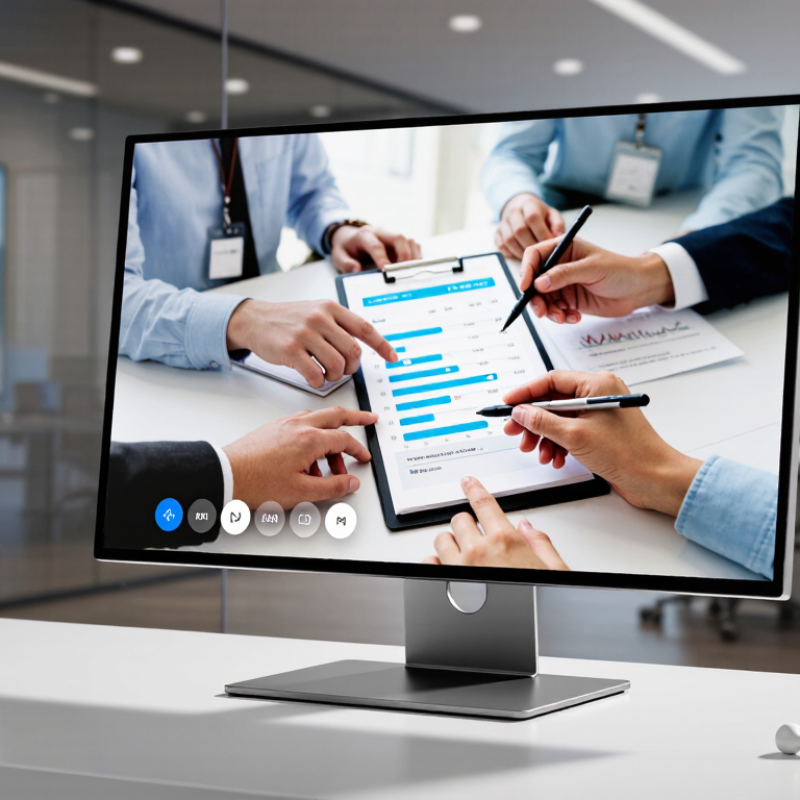
A modern business needs displays that communicate clearly and respond quickly. An HDMI Touchscreen combines familiar video connectivity with direct, hands-on control. Staff can tap menus, annotate documents, guide visitors, or manage digital signage from one bright surface. No separate mouse sits beside the screen. Less clutter matters.

Rob Tobias, CEO of HDMI Licensing Administrator, Inc., has described HDMI as “the de facto standard for connecting consumer electronics.” That established standard supports broad compatibility across computers, media players, cameras, and selected control systems. For a training room, this can simplify setup. One cable can carry high-definition video and audio, depending on the equipment and configuration. The result feels practical rather than experimental.

Still, a touchscreen is not automatically the right purchase. I would test touch accuracy with gloves, viewing angles under office lighting, and response time during busy demonstrations. Fingerprints appear quickly. Cleaning requirements can also affect daily usability. Check whether the panel supports the operating system, mounting pattern, screen size, and warranty your team actually needs. A small café may value a durable, easy-to-clean display. A design studio may prioritize color accuracy and low latency. These needs are different.

The best decision comes from observing real work. Let employees use the screen for a full shift. Watch where hesitation occurs. Ask whether tapping feels natural. Sometimes, a cheaper monitor and separate controller work better. That possibility deserves honest consideration. When compatibility, accessibility, and workflow align, an HDMI Touchscreen can turn a static display into a useful business tool.
Why Choose an HDMI Touchscreen for Your Business?

What Is an HDMI Touchscreen and How Does It Work?

An HDMI touchscreen combines a display, touch sensor, and connection interface in one business-ready device. HDMI carries the computer’s video signal to the screen, showing menus, product data, dashboards, or training content. A separate USB cable usually sends touch coordinates back to the computer. The computer then interprets each finger tap as a mouse click or gesture.

In practical installations, this setup feels simple because most systems recognize the touch panel as a standard human interface device. Power may come through USB, a dedicated adapter, or both. The touch layer detects changes in an electrical field when a finger contacts the glass. It then reports the exact position within milliseconds. Response quality still depends on cable length, computer performance, calibration, and software design. A bright screen can improve visibility near a window. It may also create reflections. That detail is easy to overlook.

Tips: Test the complete setup before installation. Check touch accuracy from every user angle. Use short, certified cables where possible. Leave space for ventilation and cable access. If users wear gloves, verify compatibility instead of assuming it. A perfect demonstration can hide daily frustrations, especially when buttons are too small or screens are mounted too high.
Why Choose an HDMI Touchscreen for Your Business?

HDMI touchscreens combine digital video delivery with touch input. HDMI carries the image signal, while touch data is commonly returned through a USB Human Interface Device connection. Higher display resolutions provide more active pixels for dashboards, digital signage, control panels, and interactive applications.

Pixel counts are calculated from each standard active resolution: horizontal pixels multiplied by vertical pixels. The chart illustrates the additional visual workspace available as HDMI display resolution increases.

Which Business Needs Can an HDMI Touchscreen Meet?

An HDMI touchscreen can meet practical needs across offices, clinics, classrooms, and service counters. It connects to existing computers, supports clear visual output, and enables direct interaction without extra input devices. A receptionist can check appointments with a fingertip. A warehouse supervisor can review stock beside a packing station. A trainer can annotate diagrams during a live session.

Market demand supports this shift. Grand View Research reported that the global interactive kiosk market reached about USD 31 billion in 2023. It also forecasts strong growth through 2030. The World Economic Forum’s Future of Jobs Report 2023 found that 44% of workers’ core skills may change within five years. Touchscreen displays can support faster training through visual instructions, guided workflows, and interactive simulations. That matters.

HDMI models also suit businesses that already use desktop systems, digital signage players, or meeting-room computers. They can reduce installation changes and simplify content updates. In practice, however, compatibility needs checking. Resolution, touch drivers, cable length, and operating-system support can affect daily reliability. A bright screen may create glare near windows. Small buttons may frustrate older users. Touch is not magic. Businesses should test viewing angles, cleaning routines, response time, and accessibility before deployment. The best solution is not always the largest display; it is the one that fits the task, space, and user.

What Features Should Businesses Evaluate Before Buying?

Choosing an HDMI touchscreen begins with the work, not the screen size. A cashier may need a bright display, while a warehouse operator needs glove-friendly touch. Define viewing distance, daily hours, and expected users before comparing models. Small details matter. Check native resolution and HDMI version carefully. A low-resolution image can make forms look cramped, even on a large panel.

Brightness should suit the room. For a sunlit counter, around 400 nits may be more practical than a dim office display. Touch technology also deserves testing. Projected capacitive touch feels smooth, but thick gloves or moisture can reduce accuracy. Ask for response-time data, multi-touch support, and calibration controls. Test the actual interface, not only a static product demo. That lesson is easy to miss.

Evaluate the enclosure, mounting pattern, cable access, and operating temperature. A busy service desk needs a stable stand and a surface that tolerates frequent cleaning. Confirm compatibility with your computer, operating system, and power setup before purchase. HDMI carries video and audio, but touch feedback may require a separate USB connection. Plan for it. Review warranty terms, replacement availability, and long-term support. The cheapest panel can become expensive when downtime interrupts a queue. I would also leave room for human error; staff may press hard, spill drinks, or connect the wrong cable. A touchscreen that works only under ideal conditions is not ready for business.

How Can an HDMI Touchscreen Improve Daily Operations?

Why Choose an HDMI Touchscreen for Your Business?

How Can an HDMI Touchscreen Improve Daily Operations?

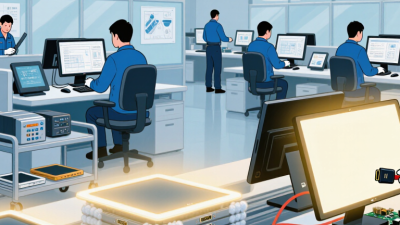
An HDMI touchscreen can make routine business tasks faster and more visible. Staff can monitor dashboards, update records, or control equipment from one compact display. In my experience, touch access reduces the need for separate keyboards and mice at busy workstations. A clear screen near a service counter can also shorten customer interactions. It keeps essential information within reach.

Small details matter. A 10.1-inch display may suit a reception desk, while a larger panel may support warehouse monitoring. Check viewing angles, brightness, mounting space, and cable length before installation. A touchscreen is not a perfect fix. Poor software design can still slow employees down. Some users may also need brief training.

Tips: Test the screen during normal working hours. Ask employees to complete common tasks without assistance. Confirm that icons remain readable under bright lights. Keep a backup input method available during maintenance. Review touch accuracy after several weeks, because dust, gloves, and frequent use can affect performance. A simple cleaning schedule helps preserve clarity. Document connection settings and operating procedures for reliable support.

How Should Businesses Install and Maintain an HDMI Touchscreen?

An HDMI touchscreen can support reception desks, training rooms, retail displays, and control panels. Installation quality decides whether it performs reliably. AVIXA’s 2024 Industry Outlook and Trends Analysis estimates global professional audiovisual revenue at about $332 billion in 2023. It also forecasts continued growth through 2028. That growth increases the need for dependable, maintainable displays.

Mount the screen at eye level, with enough clearance for ventilation. Avoid direct sunlight and heat-producing equipment. Use a certified HDMI cable that matches the required resolution and distance. Test the source, audio, touch response, and signal stability before securing the screen. Label both cable ends. This saves time during service calls. A tidy installation can still fail when ventilation is ignored.

Tips: Clean the panel with a soft, dry microfiber cloth. Do not spray liquid directly onto the screen. Check connectors monthly for looseness or dust. Review firmware and operating-system updates during planned maintenance. Keep a simple log of faults, temperature changes, and cable replacements. The Uptime Institute’s 2024 Annual Outage Analysis reported that equipment failure remains a major cause of technology outages. This is a useful warning, although routine inspection cannot prevent every failure. Test touch accuracy at the screen’s corners, not only at its center.

Why Choose an HDMI Touchscreen for Your Business? - How Should Businesses Install and Maintain an HDMI Touchscreen?

Business Dimension Relevant Data or Technical Detail Business Advantage Installation or Maintenance Guidance
Video and Audio Connectivity HDMI can transmit digital video and audio through one cable. Supported resolution and refresh rate depend on the display, source device, cable, and HDMI specification. Reduces cable complexity and supports common business devices such as computers, media players, meeting-room systems, and point-of-sale equipment. Confirm that the source device and touchscreen support the required resolution and refresh rate before installation. Use cables rated for the required bandwidth.
Touch Input HDMI normally carries the display signal, while touch data commonly requires a separate USB connection or another supported data connection. Provides interactive control for kiosks, reception desks, training rooms, digital signage, and collaborative workspaces. Connect the touchscreen's touch-data cable to the host device and verify that the operating system detects the touch interface.
Display Size and Aspect Ratio Business touchscreens are commonly available in multiple sizes, with 16:9 being a widely used aspect ratio for commercial video content. Allows businesses to match the screen to viewing distance, available wall or counter space, and the intended application. Measure the installation area first. Leave sufficient space for mounting hardware, ventilation, cable routing, and user access.
Response and Usability Touch performance depends on the touch technology, operating system, driver support, screen surface, and application design. Fast and accurate interaction can shorten service time and improve self-service or collaborative workflows. Test single-touch and multi-touch functions, screen orientation, calibration, and application controls before deployment.
Viewing Environment Brightness, viewing angle, ambient light, reflections, and glare affect readability and touch accuracy. Correct environmental selection improves visibility and reduces user errors. Position the screen away from direct sunlight where possible. Check readability from the normal user position and adjust lighting or display settings as needed.
Installation Position Wall, desktop, floor-stand, and recessed installations have different structural and cable-management requirements. Flexible mounting supports reception areas, meeting rooms, retail counters, classrooms, and industrial workstations. Use a mount rated for the display's weight and mounting pattern. Fasten it to a suitable structural surface and prevent cable strain.
Power and Cable Management The display requires a suitable power source, while the HDMI and touch-data cables must remain within their supported specifications. Organized connections reduce accidental disconnections, trip hazards, and service interruptions. Route cables separately from high-interference power equipment where practical. Label both ends and provide strain relief near the connectors.
Heat and Ventilation Electronic displays generate heat during operation, and blocked ventilation openings can raise internal temperatures. Good thermal management supports stable operation and helps protect internal components. Do not cover ventilation openings. Follow the clearance specified in the product documentation and avoid sealed enclosures unless designed for heat removal.
Cleaning Routine Touchscreens accumulate fingerprints, dust, and surface residue through normal use. A clean surface improves visibility, hygiene, and touch accuracy. Power off the screen before cleaning. Use a soft, lint-free cloth and a cleaning method approved for the screen surface. Do not spray liquid directly onto the display.
Inspection Frequency A practical maintenance program can include daily visual checks, weekly connection checks, and a more detailed monthly review. Regular inspection helps identify loose cables, abnormal heat, image problems, and touch faults before they affect operations. Record inspection results, check connectors and mounts, examine the power cable, and verify display and touch performance.
Software and Configuration Touch functionality may depend on operating-system settings, drivers, firmware, calibration, and application permissions. Consistent configuration reduces downtime and prevents incorrect touch mapping. Keep a record of approved settings. Apply updates during planned maintenance windows and retest touch calibration afterward.
Security and Access Control Interactive displays may expose applications, internal content, or connected systems to users in public or shared areas. Access controls help protect business data and prevent unauthorized changes. Use restricted user accounts, disable unnecessary functions, secure physical ports where appropriate, and configure automatic screen locking when supported.
Reliability and Downtime Planning Operational reliability is influenced by power quality, temperature, cable integrity, software stability, and usage conditions. Preventive maintenance can reduce unexpected service interruptions. Keep spare cables and approved cleaning materials available. Define a replacement process and document common fault symptoms and corrective actions.
Accessibility and User Safety Screen height, reach distance, text size, contrast, and user circulation space affect accessibility and safe operation. Accessible design supports more users and can improve completion rates for self-service tasks. Install the screen at a comfortable reachable height, maintain clear floor space, use readable interface elements, and avoid sharp exposed edges.
Total Cost of Ownership Ownership costs include the display, mounting hardware, cables, installation labor, power consumption, cleaning, software support, and replacement parts. A complete cost assessment helps businesses compare solutions based on operational value rather than purchase price alone. Estimate installation and maintenance requirements before purchase. Select equipment that matches the expected duty cycle and operating environment.
Important: Exact resolution, refresh-rate, cable-length, mounting-clearance, power, and environmental requirements vary by model. Always verify the product documentation before installation or maintenance.