Leave Your Message
Choosing the right Hdmi Touchscreen in 2026 requires more than comparing screen size and price. A display may look sharp in a product photo yet feel slow when a user drags a map across it. Touch latency, HDMI version, USB touch return, brightness, and viewing angles all affect daily use. These details matter in workshops, classrooms, control rooms, retail counters, and compact home offices.
A reliable evaluation begins with the complete setup. Check whether the touchscreen works with your computer, operating system, and intended HDMI source. Confirm that touch data travels through USB, not HDMI alone. Test the screen at its native resolution, then inspect text at close range. A 10-point panel can be useful, but accurate calibration matters more for many professional tasks. Look for stable stands, responsive controls, heat management, and clear warranty terms. Safety certifications and transparent manufacturer documentation also deserve attention.
Real hands-on testing reveals problems specifications may hide. A glossy panel can reflect ceiling lights. Small touch targets may frustrate users with wet or gloved fingers. Some models need separate power, creating extra cable clutter. No checklist is perfect. I may still overlook a minor issue in a short test. Therefore, this guide compares practical performance, connectivity, durability, ergonomics, and long-term value. The best Hdmi Touchscreen is not always the largest or most expensive model. It is the one that responds naturally, fits the workspace, and remains dependable after repeated use.
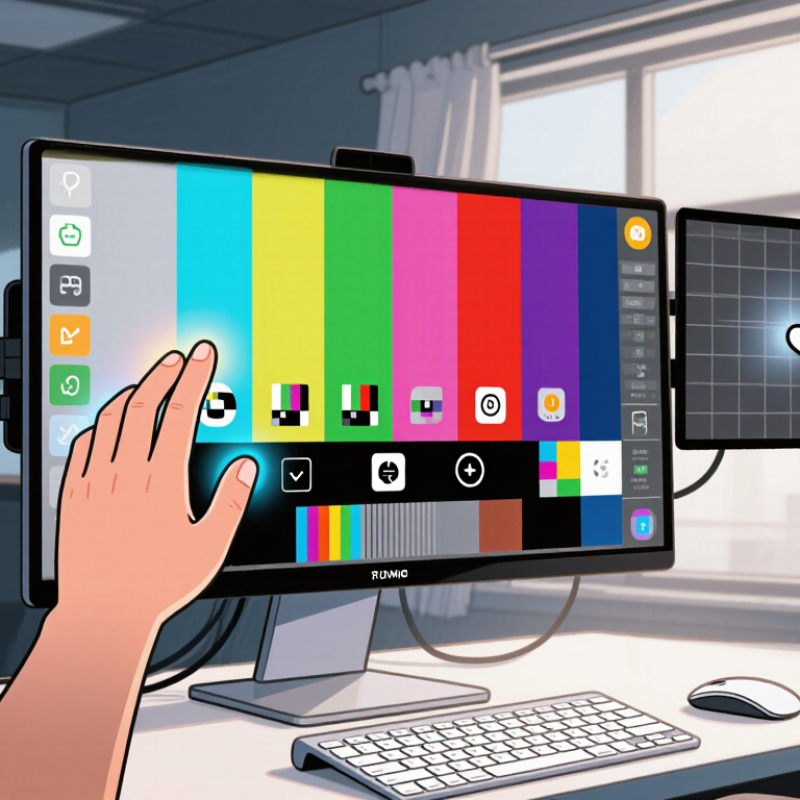
An HDMI touchscreen combines two separate systems: image delivery and touch input. HDMI carries digital video from a computer, media player, or industrial controller to the panel. It does not normally carry touch commands back. A USB connection usually sends finger movements through a Human Interface Device protocol. The operating system then reads a tap, swipe, or drag as mouse or touch input.
Inside the screen, a transparent capacitive grid detects changes in electrical charge near the glass surface. A small controller converts those changes into coordinates. Accuracy depends on the sensor, cover glass, calibration, and software. Wet fingers can still confuse it. That matters in kitchens, clinics, and factory areas. Check the operating temperature, glove support, and claimed touch points rather than trusting resolution alone.
Market data shows why these details matter. MarketsandMarkets estimated the interactive display market at about 12.7 billion US dollars in 2024, with continued growth toward 2029. The report links demand to collaborative workspaces, education, and interactive control systems. Yet market growth does not guarantee compatibility. A 4K panel may show a beautiful image while touch fails because the USB driver, power supply, or operating system is unsuitable. I have seen this mistake during installation. The picture worked first. Touch needed another cable and calibration. In 2026, compare HDMI bandwidth, USB touch support, latency, brightness, and mounting conditions together. Specification sheets often hide the practical part.
Use this comparison guide to match the touchscreen's display, touch technology, connectivity, power requirements, and intended application with your device and workspace.
| Selection Dimension | Entry-Level HDMI Touchscreen | General-Purpose HDMI Touchscreen | High-Resolution HDMI Touchscreen | Portable HDMI Touchscreen |
|---|---|---|---|---|
| What It Is | A display that receives video through HDMI and usually provides touch input through a separate USB connection. | An integrated monitor with HDMI video input, USB touch communication, and everyday desktop or control-panel features. | A higher-pixel-density display designed for detailed graphics, creative work, engineering interfaces, or professional dashboards. | A slim, lightweight display designed to extend a laptop, mini computer, game console, or single-board computer. |
| Typical Screen Size | 7–10.1 inches | 11.6–15.6 inches | 15.6–27 inches | 13.3–16 inches |
| Common Resolution | 800 × 480, 1024 × 600, or 1280 × 800 | 1280 × 800, 1920 × 1080, or 1920 × 1200 | 2560 × 1440 or 3840 × 2160 | 1920 × 1080 or 2560 × 1600 |
| Recommended Viewing Distance | Approximately 30–60 cm for menus, instruments, and compact interfaces | Approximately 45–80 cm for desktop use and control applications | Approximately 50–90 cm, depending on screen size and scaling settings | Approximately 40–70 cm when used beside a laptop or as a travel display |
| Touch Technology | Usually projected capacitive touch; some models may use resistive touch. | Usually projected capacitive touch with multi-touch support. | Projected capacitive touch, commonly with multi-touch and improved palm-rejection features. | Projected capacitive touch; operation may depend on USB data and operating-system support. |
| Touch Connection | USB connection is commonly required to send touch coordinates to the host device. | HDMI carries video, while USB typically carries touch data and may also support a USB hub. | HDMI or another video input carries the image; USB is generally used for touch data. | One USB connection may carry touch data, while a separate USB-C or power connection may be needed for power. |
| HDMI Function | Receives digital video and audio from a compatible source; HDMI does not normally carry touch data back to the source. | Receives the source image and, when supported, digital audio. Touch feedback travels through USB or another data link. | Requires an HDMI version and cable capable of supporting the selected resolution and refresh rate. | Typically uses HDMI or USB-C video input; the exact connection method depends on the host device and display design. |
| Typical Refresh Rate | 60 Hz | 60–100 Hz | 60–144 Hz, depending on resolution and input bandwidth | 60–120 Hz |
| Panel Technology | IPS or similar LCD panel for wide viewing angles; TN panels may appear in basic designs. | IPS LCD is common because it balances color, viewing angle, and cost. | IPS or similar wide-viewing-angle LCD technology is common for color and detail work. | IPS LCD is common, with emphasis on low thickness and viewing angles suitable for shared use. |
| Brightness Range | Approximately 200–400 nits for indoor use | Approximately 250–500 nits for offices, classrooms, and indoor kiosks | Approximately 300–600 nits for detailed indoor work; outdoor readability requires a higher-brightness design. | Approximately 250–500 nits; direct sunlight can still reduce readability. |
| Power Requirement | Often powered by 5 V USB or an external low-voltage adapter; power needs vary by screen size and brightness. | Usually powered by an external adapter or USB-C power input. Video and power may use separate cables. | Usually requires an external power adapter because higher resolution, brightness, and refresh rate increase power demand. | Often powered through USB-C, although some models require separate power when brightness or touch usage is high. |
| Operating-System Support | Video output generally works independently of the operating system; touch requires a compatible USB HID or touch driver. | Commonly compatible with operating systems that support standard USB human-interface touch devices. | Confirm support for the display resolution, scaling, multi-touch gestures, and graphics drivers. | Confirm USB-C video support, HDMI adapter compatibility, touch-driver support, and available power. |
| Best Use Cases | Embedded projects, compact instruments, menus, simple monitoring, and basic media playback | Office work, point-of-sale interfaces, education, home computing, and interactive control panels | Design review, detailed maps, data visualization, professional dashboards, and high-detail media | Travel work, dual-screen laptop setups, field service, presentations, and mobile gaming |
| Key Advantages | Compact size, lower power consumption, and generally lower cost | Balanced image quality, usability, connectivity, and installation flexibility | Sharper images, more workspace, and better suitability for detailed content | Easy transport, flexible placement, and convenient use with compatible portable devices |
| Important Limitations | Small workspace, limited brightness, and possible need for multiple cables | Touch performance and compatibility can vary between operating systems and applications. | Higher power consumption, greater cost, and more demanding cable and graphics requirements | Limited built-in power capacity; one-cable operation is not guaranteed for every host device. |
| What to Check Before Buying | Native resolution, mounting pattern, touch interface, power input, and required cable types | HDMI input version, USB touch connection, supported gestures, brightness, speakers, and mounting options | Resolution and refresh-rate bandwidth, graphics output capability, color requirements, power supply, and scaling support | USB-C alternate-mode support, power budget, HDMI adapter needs, weight, stand design, and touch compatibility |
Note: Specifications such as brightness, refresh rate, power consumption, touch points, and supported resolutions vary by model. Always verify the display's technical documentation and the host device's output capabilities before purchase.