How to Choose the Best USB Touch Monitor for Your Needs
Choosing the right USB touch monitor can transform your workflow. As John Smith, a leading expert in interactive displays, once stated, "The best USB touch monitor is the one that fits your specific needs." With a multitude of options available, the choice can feel overwhelming.
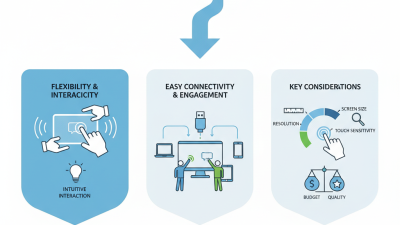
When selecting a USB touch monitor, consider factors like screen size, resolution, and touch sensitivity. A larger screen can enhance visibility, making it easier to interact with content. Resolution plays a crucial role too; higher resolution ensures sharper images and better detail. However, these features alone aren’t enough. The usability of the software and compatibility with your devices matter greatly.
Think about how you intend to use the monitor. Gaming? Presentations? Creative work? Your needs will guide your choice. It’s essential to reflect on your priorities. Sometimes, the most feature-rich monitors aren't necessarily the best fit. Balancing features with practicality will help you make the best decision.
Understanding USB Touch Monitor Technology and Specifications
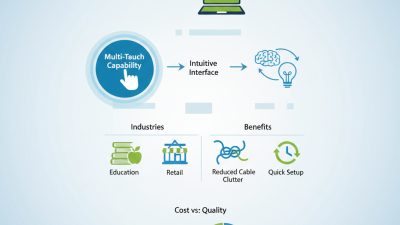
When selecting a USB touch monitor, understanding the technology and specifications is crucial. Touch monitors operate using different technologies like capacitive and resistive. Capacitive screens offer smooth interactions and support multi-touch gestures. They are ideal for applications that require precise touch. Resistive monitors, on the other hand, can be less responsive but work well with styluses and gloved hands. These distinctions can impact your choice significantly.
**Tips:** Consider your usage environment. If you're using the monitor in a bright area, opt for one with anti-glare capabilities. The size and resolution are equally important. A larger screen with higher resolution enhances user experience, especially for graphic-intensive tasks.
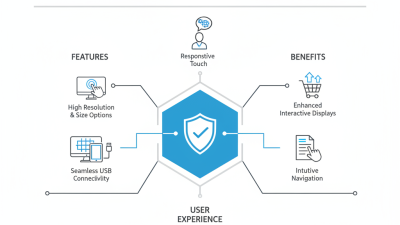
Make sure to check the connectivity options. A versatile monitor should support various USB types for seamless compatibility with your devices. Read reviews to gauge performance under real-world conditions. Not all monitors will meet expectations, so user feedback can highlight potential shortcomings. Finding the right balance between features and practicality is essential in your decision-making process.
How to Choose the Best USB Touch Monitor for Your Needs
| Specification |
Value |
| Screen Size |
15.6 inches |
| Resolution |
1920 x 1080 (Full HD) |
| Touch Technology |
Capacitive |
| Connectivity |
USB Type-C, HDMI |
| Brightness |
250 cd/m² |
| Input Delay |
5 ms |
| Operating System Compatibility |
Windows, macOS, Linux |
| Weight |
3.3 lbs |
| Power Supply |
USB powered |
Evaluating Display Quality: Resolution, Brightness, and Color Accuracy
When selecting a USB touch monitor, evaluating display quality is essential. Key factors include resolution, brightness, and color accuracy. A high resolution ensures clear and detailed images. Look for displays with at least 1080p for optimal performance. This resolution helps in various applications, from graphic design to gaming.
Brightness is also significant. A brighter display helps visibility in well-lit environments. Monitors with at least 250 nits of brightness are generally recommended. However, too bright can cause glare. It’s important to find a balance that suits your workspace. Consider testing in your typical conditions.
Color accuracy cannot be overlooked. A monitor that reproduces colors accurately is beneficial for creative work. Check the sRGB and Adobe RGB coverage of the monitor. Keeping your workspace organized will allow you to see the colors better.
Tips: Always try to view the monitor before purchasing. Color perception can vary from person to person. Take time to adjust settings for a personalized experience. This helps find the right balance for your needs. Ultimately, ensuring a good fit for your tasks will lead to a more productive experience.
Assessing Touch Sensitivity: Capacitive vs. Resistive Screens
When choosing a USB touch monitor, it's crucial to consider the type of touch technology. Two primary options are capacitive and resistive screens. Capacitive screens use a conductive touch layer, allowing for multi-touch gestures. They provide a smooth and responsive user experience. However, they demand a light touch and might struggle with precision if your hands are wet or cold.
On the other hand, resistive screens rely on pressure applied to the screen. They work well with styluses or gloved hands, making them suitable for varied environments. However, they lack the multi-touch capabilities of capacitive screens, which can be a drawback for some applications.
**Tip:** Assess your usage environment. If you anticipate using the monitor outdoors or in challenging conditions, a resistive screen might be better.
Another consideration is touch sensitivity. Capacitive displays tend to respond faster but can sometimes register unintentional touches. This can be frustrating, especially during tasks requiring accuracy.
**Tip:** Test each display in person if possible. Evaluate how it responds to different touch pressures and your natural gestures.
Ultimately, selecting the right touch technology depends on your specific needs and preferences. Think about who will use it and how they’ll interact with the monitor. Balancing responsiveness and accuracy is key to an enjoyable user experience.
Compatibility Considerations: Operating Systems and Device Connections
When selecting a USB touch monitor, compatibility is crucial. Not all monitors work seamlessly with every operating system. Windows, macOS, and Linux have varying levels of support for touch features. Ensuring your chosen monitor is compatible with your current OS is a vital first step. Researching forums and user experiences can provide insight into how well a specific monitor functions with your setup.
Device connections also play a key role in compatibility. A USB monitor may connect via USB-A, USB-C, or even Mini DisplayPort. Check which ports your devices have. An adapter may be needed, which can complicate your setup. Ideally, choose a monitor that matches your device connectors for effortless integration. If your devices are diverse, look for a monitor that offers multiple connection types.
Many users overlook the need for driver installation, which can affect usability. Certain monitors require specific drivers to enable full functionality. This might involve additional setup steps that some find frustrating. It’s always wise to prepare for this possibility. Testing the monitor with your primary device is essential before making a final decision. This method ensures you minimize compatibility issues down the line.
Analyzing Price vs. Features: Finding Value in the Market
When choosing a USB touch monitor, balancing price and features is crucial. Many monitors offer a range of options. Higher-priced models often come with better display quality, touch sensitivity, and build materials. However, mid-range monitors can fulfill basic needs effectively, making them attractive for budget-conscious buyers. A superficial comparison may overlook that cheaper monitors can underperform in critical areas.
Consider your specific requirements. Do you need high resolution for design work? Or is it just for casual use? If frequent touch interactions are expected, investing a bit more might enhance your experience. Be wary of features that sound attractive but don’t add real value. Glossy surfaces, for instance, can cause glare, affecting usability in bright environments.
Reading reviews can provide insight into user experiences. Some monitors may look great on paper but fall short in real-world use. Assess each product critically and verify claims of responsiveness. Real users can offer warnings about connectivity issues or reliability. Balancing price with meaningful features ensures a purchase that meets your needs without overspending.