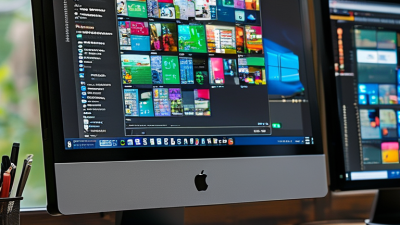
Choosing the best Lcd Touch Monitor requires more than comparing screen size and price. The right model should match the environment, software, users, and daily workload. A cashier may need a bright, responsive display that survives constant tapping. A designer may value accurate colors, wide viewing angles, and smooth multi-touch control. Industrial operators often need sealed surfaces, stable mounting, and reliable performance under dust or vibration.
Start with the touch technology. Projected capacitive screens usually offer fast, familiar smartphone-like operation. Resistive panels can work better with gloves, styluses, or heavier contact. Brightness also matters. A screen placed near a window may need at least 500 nits, while an office monitor might need far less. Check the viewing angle, resolution, response time, and surface finish together. A glossy panel can produce vivid images, but reflections may become distracting under ceiling lights.
Do not ignore connection options. HDMI, DisplayPort, USB, and touch-control interfaces must match the host device. Compatibility problems are easy to overlook. They can delay installation.
Professional testing should include repeated taps, edge accuracy, cable stability, and heat after several hours. Specifications provide useful evidence, but practical experience reveals weaknesses. One monitor may feel excellent during a short demonstration and become uncomfortable after a full shift. That detail matters. Warranty terms, replacement parts, mounting standards, and technical support also influence long-term value. A careful choice is not always the cheapest one, and even experienced buyers may misjudge future needs. Allow room for honest reassessment.
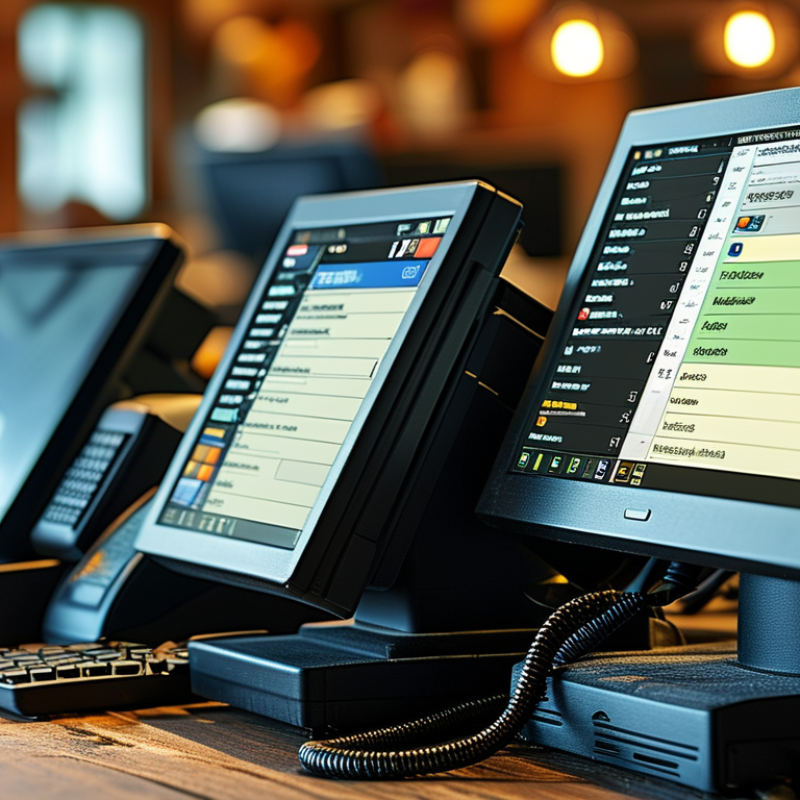
Choosing an LCD touch monitor starts with its touch technology, not its screen size. Resistive panels respond to pressure, so they work well with gloves or a stylus. Projected capacitive panels feel faster and support smooth multi-touch gestures. Infrared systems can detect larger objects, but dust around the frame may affect accuracy. Test the interface with your actual tools.
Resolution determines how clearly small text, diagrams, and control buttons appear. A 1920×1080 panel suits many office and control applications. Brightness matters in rooms with strong windows or overhead lighting. However, excessive brightness can cause eye strain. Check viewing angles if several people will use the display. Touch response time, surface hardness, and anti-glare treatment also deserve attention.
I once favored a larger screen and ignored mounting depth. That choice was not ideal. Measure the desk, bracket, cable space, and viewing distance first. For demanding environments, inspect the enclosure rating, operating temperature, and connector layout. USB, HDMI, and DisplayPort support can simplify installation, but compatibility still needs testing. Touch accuracy may change near screen edges, especially after protective glass is added. Check calibration with a finger, glove, and stylus before approving the final setup.
Choosing the best LCD touch monitor starts with the work surface, not the product catalog. A 15.6-inch screen suits compact counters and mobile carts. A 21.5-inch display offers more room for dashboards and forms. Larger screens help teams read dense data from a distance, but they consume more desk space. Bigger is not always better.
Resolution should match viewing distance and content detail. Full HD remains practical for basic control panels, booking systems, and point-of-sale interfaces. For maps, medical images, or multi-window workflows, 4K can provide sharper text and finer visual separation. However, higher resolution may increase power demand and require stronger graphics hardware. According to the International Data Corporation’s 2024 monitor tracking reports, commercial displays remain strongly influenced by workplace modernization and hybrid workflows. That trend does not make every installation need a larger panel.
Touch technology changes the user experience. Projected capacitive touch supports clear gestures and works well with fingers or thin gloves. Resistive touch can respond to styluses and heavier gloves, although it may feel less fluid. MarketsandMarkets forecasts the global touchscreen market to grow from about 76.6 billion dollars in 2023 to 107.6 billion dollars by 2028. The report indicates expanding demand across industrial and commercial applications. Still, market growth is not a fitting guide. Test the screen with real gloves, bright light, wet fingers, and repeated taps. I have learned that specification sheets often hide the hardest question: will operators trust the touch response all day?
How to Choose the Best LCD Touch Monitor?
Choosing the best LCD touch monitor starts with its connection options. HDMI and DisplayPort usually provide stable video signals for office and industrial computers. USB-C can carry video, touch data, and power through one cable. However, not every USB-C port supports all three functions. Check the host device’s specifications before buying. A separate USB connection may still be required for touch input. Also inspect port placement. Rear-facing ports can become awkward in a tight workstation.
Compatibility matters as much as image quality. Confirm the monitor’s native resolution matches the computer’s output settings. Incorrect scaling can make buttons feel misplaced during touch operation. Most capacitive panels work through standard human interface device support. Still, multi-touch gestures and calibration may depend on the operating system and installed drivers. Test sleep, wake, rotation, and screen extension functions. Linux support, for example, can vary between kernel versions. I have seen touch work immediately, yet calibration required extra adjustment.
Tips: Create a short checklist before purchase. Record available ports, operating system version, required resolution, mounting space, and power limits. Test the actual cable length, not only the connector type. Keep a backup input method for setup and troubleshooting. Small details matter. A monitor may appear compatible, but daily use can expose inconvenient compromises.
Comparing common display connections by effective video bandwidth helps evaluate resolution, refresh-rate headroom, and compatibility requirements.
How to Choose the Best LCD Touch Monitor?
Durability begins with the installation site, not the product brochure. IEC 60529 defines IP ratings for protection against dust and water ingress. An IP65-rated enclosure may suit a dusty workshop, but it does not guarantee impact resistance. Check the front glass, operating temperature, touch-cycle rating, and cleaning instructions. A damp cloth and frequent finger contact can expose weak seals quickly. I have seen a bright panel fail because its ventilation was blocked by a shallow cabinet.
Ergonomics deserves equal attention. OSHA’s Computer Workstations eTool recommends placing the monitor 20 to 40 inches from the user, with the top near eye level. The World Health Organization reported that 1.71 billion people live with musculoskeletal conditions in 2022. That figure is not proof that one monitor causes injury, but it makes poor positioning difficult to dismiss. Test the viewing angle while standing and seated. Glare from overhead LEDs can make a sharp display exhausting after six hours. I still underestimate this during short demonstrations.
Installation details can quietly decide usability. Confirm the VESA hole pattern, mounting depth, arm load limit, and cable exit direction. VESA’s Display Mounting Interface Standard helps match displays with compatible mounts, but the wall structure still needs verification. Leave room for airflow and service access. A flush installation looks clean. It can also trap heat and complicate repairs. Do not trust the first fit. Measure twice, then test touch accuracy at the screen’s edges.
| Configuration Type | Typical Size & Resolution | Touch Technology | Durability Factors | Ergonomic Strengths | Installation Requirements | Best-Fit Applications |
|---|---|---|---|---|---|---|
| Compact Countertop Monitor | 10–15.6 in 1280 × 800 to 1920 × 1080 |
Projected capacitive; supports finger and gloved operation on compatible models | Tempered cover glass is useful in public areas; sealed front surface helps resist dust and liquid ingress | Small footprint; easy to position close to the user; suitable for occasional interaction | Desk, countertop, or VESA-compatible arm; allow space for cables and ventilation | Reception desks, retail counters, point-of-service stations, compact control panels |
| General-Purpose Desktop Monitor | 17–22 in 1280 × 1024 to 1920 × 1080 |
Projected capacitive or infrared; multi-touch availability varies | Standard office construction; choose a scratch-resistant surface for frequent touch use | Good viewing area for menus and dashboards; tilt adjustment improves viewing comfort | Desktop stand or 75 × 75 mm / 100 × 100 mm VESA mount; keep the screen near eye level | Office workflows, education, light industrial supervision, information kiosks |
| Large-Format Interactive Monitor | 23.8–32 in 1920 × 1080 to 3840 × 2160 |
Projected capacitive or infrared multi-touch | Look for reinforced glass, robust bezels, and a high-duty-cycle rating when used continuously | Displays more information at once; larger touch targets reduce repeated tapping and scrolling | Requires a sturdy desk stand, wall bracket, or articulated arm; verify load rating and reach | Design review, monitoring dashboards, digital signage, collaborative workstations |
| Rugged Industrial Touch Monitor | 15–24 in 1024 × 768 to 1920 × 1080 |
Projected capacitive, resistive, or infrared; select based on gloves, tools, and contamination | Metal enclosure, vibration resistance, wide operating temperature range, and front sealing are key considerations | Designed for standing operation and repeated interaction; tactile or gloved input may be supported | Panel or VESA mounting; confirm cutout dimensions, grounding, airflow, and connector access | Factory automation, machine control, warehouses, process monitoring, transportation equipment |
| IP-Rated Washdown Monitor | 15–27 in 1920 × 1080 is common |
Projected capacitive or resistive; verify wet-touch performance | Sealed front bezel, gasketed connectors, corrosion-resistant housing, and a specified IP rating improve protection | Smooth, easy-to-clean front surface; can be positioned for standing or seated operation | Flush panel installation is preferred; use compatible cables, seals, and mounting hardware | Food processing, healthcare support areas, laboratories, clean production environments |
| Open-Frame Embedded Monitor | 10.4–21.5 in 800 × 600 to 1920 × 1080 |
Resistive or projected capacitive; interface depends on the host system | Durability depends largely on the final enclosure; add protective glass or a bezel for exposed installations | Allows a custom viewing angle and control layout; ideal when the monitor must be integrated into equipment | Requires an accurately sized cutout, rear clearance, mounting brackets, and thermal management | Self-service kiosks, laboratory instruments, vending equipment, custom machinery |
| Wall-Mounted Public-Access Monitor | 21.5–32 in 1920 × 1080 to 3840 × 2160 |
Projected capacitive or infrared multi-touch | Use impact-resistant glass, tamper-resistant fasteners, and a front surface designed for frequent cleaning | Large interface is visible to many users; mount height and tilt should accommodate a broad user range | Verify wall structure, VESA pattern, bracket load capacity, cable routing, and accessibility clearance | Wayfinding, visitor check-in, ticketing, public information, retail self-service |
How to Choose the Best LCD Touch Monitor?
Image quality should match the work, not merely impress in a showroom. I check text sharpness, viewing angles, brightness, and color consistency at normal desk distance. A 100% sRGB screen may suit office tasks, while design work needs stronger color accuracy and reliable calibration. Look closely at dark scenes. Uneven backlighting becomes obvious there.
Responsiveness affects every tap, drag, and handwritten note. During testing, I open menus quickly, scroll through documents, and use a drawing application. A good panel should register light touches without missed inputs or sudden jumps. Ten-point touch support helps collaboration, but it is not always necessary. Glass surfaces feel smooth, yet they can reflect windows and overhead lamps. A matte finish may look less elegant, but it often reduces fatigue.
Price deserves a wider view than the checkout total. Compare the stand, ports, warranty length, included cables, and expected service life. A cheaper monitor can become expensive after replacing a weak stand or adding an adapter. Check heat, power use, and pixel policy before purchasing. Small differences matter over several years. I once prioritized resolution and overlooked poor ergonomics; that choice caused more discomfort than expected. Specifications guide decisions, but real desk conditions reveal the truth.